

Desktop wallets, for example Electrum, to function and store user information, they create special files. In these files we can find information such as addresses present in the wallet, transactions made, information on the type of wallet, etc. Obviously, since this is very sensitive information, these files are usually encrypted and cannot be consulted without knowing the correct password.
It may happen that we need to access a wallet whose password we do not know, for example because we have forgotten it, or because we are trying to access the wallet of a "bad guy" during a security activity. digital forensics.
The reference environment
For today's example we will use the distro Tsurugi Linux, a distribution oriented towards DFIR activities, which includes many carefully catalogued tools divided into categories, including one dedicated to “Crypto Currencies”.
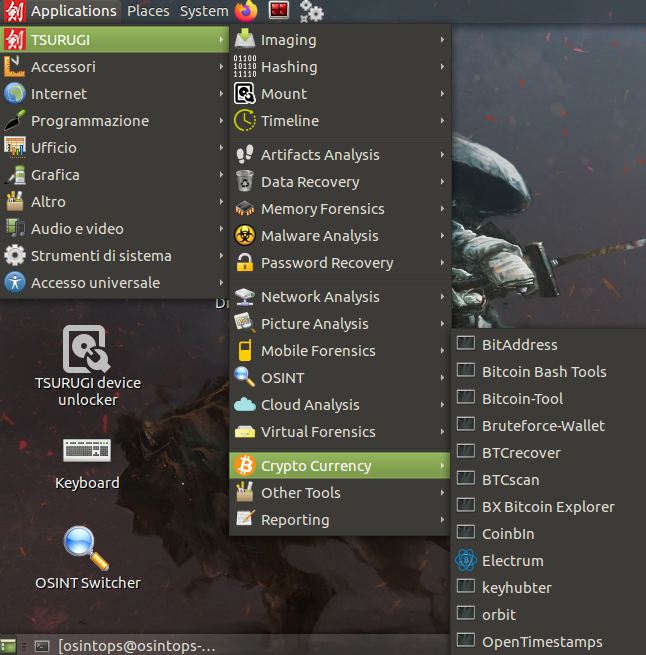
Let's assume you've already created a wallet with the Electrum client. Otherwise, here You can find the official guide for creating one. Electrum files, including the wallets you create, are stored in a hidden folder in your home directory.
To view them we can open the terminal and type the command
ls -a
The command ls is used to list the contents of the current folder, while the option -to This is used to include hidden files and folders in the output.
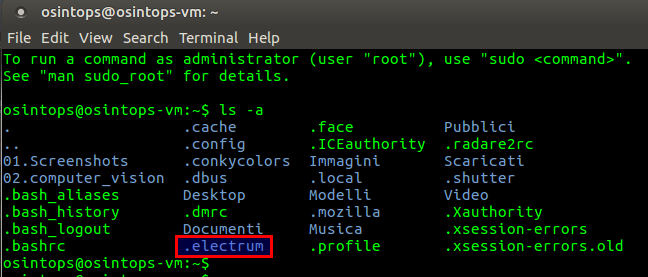
If we've already created a wallet with Electrum and everything went according to plan, we should see the .electrum folder. Inside, we'll find the wallets subfolder, which will contain all the files related to the wallets we've created.
We know the tools
To try to recover access to a wallet, in our case created with Electrum, we will use the tool BTCrecover, present in the Tsurugi menu dedicated to Cryptocurrencies. In addition to Bitcoin wallets created with Electrum, the tool can manage many other files, including wallets created with Armory, MultiBit, Bither, and other clients. Obviously, the wallets don't have to be for Bitcoin: they can also be for other virtual currencies, managed by the clients the tool supports.
When the tool is run, you must specify the wallet file you want to open and a list of passwords to try. Alternatively, you can provide a list of words, which in the official guide are called token, to create passwords made up of combinations of these words.
Let's get ready
In our example, we will try to find the password for a wallet file named “default_wallet,” a name that is suggested by the Electrum client during the creation phase.
To avoid working directly on our wallet file, risking damaging it, let's start by creating a copy of the file, perhaps in another working folder. First, use the command
cd .electrum/wallets
From our terminal, we navigate to the folder containing the file to be analyzed. Then we copy the file into the Documents folder with the command
cp default_wallet /home/osintops/Documents/
Obviously, instead of osintops you will have to use the username corresponding to your work environment.

At this point, to try opening the wallet file, we'll need a list of passwords to try. You can find many of them online, varying in size, even several gigabytes in size. For our purposes, we'll simply create a small text file containing a few passwords, including the correct one, and store it in the same folder where we copied the wallet we want to open.
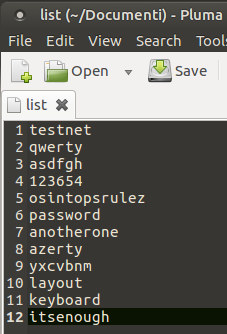
Let's run the tool
Now that we've prepared everything we need, we can run the BTCrecover tool. First, go to the folder where we stored the copy of the wallet file we want to open and the password list we want to try—in our case, Documents. Use the command
cd ../../Documents
The sequence “..” is used to return to the previous folder: first we returned to the .electrum folder, then to the home folder, and then we went to the Documents folder.
At this point we run the BTCrecover tool, with the command
btcrecover.py –wallet default_wallet –passwordlist list
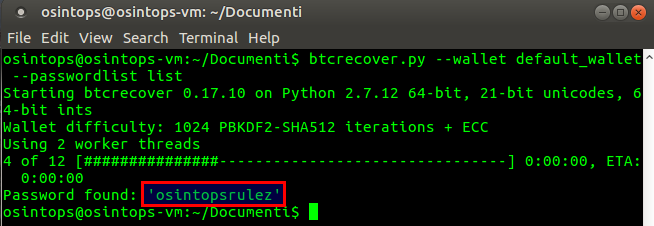
In a very short time (also given the brevity of the list used), the tool was able to identify the correct password to access the wallet. At this point, by opening the wallet via the Electrum client, it will be possible to both view all the wallet's history information and spend any available bitcoins.
Conclusions
We've seen how, using a couple of Linux commands and an excellent tool, we can regain access to a wallet used to manage virtual currencies. In practice, we've seen that, using the right tools, you can easily achieve very effective results.
Let's imagine we have a computer to analyze and we can identify some wallet files. Using a similar solution, we could gain access to the "bad guy's" bitcoins and, if the conditions are met, we could even attempt to seize them.
Leave a Reply