

Over the past few months, I've tried out a wide variety of scripts and software, some promoted by the international OSINT community, others resulting from my own research on GITHUB, a hotbed of projects and ideas.
After many tests, I have collected the programs that I consider most useful in my business and I decided to collect them on a Linux VM so that I have them all already ready to use.
The choice of the OS to use in the VM fell on Ubuntu 18.04 because it is very stable and is not affected by any particular critical issues (known to date).
Once the ISO is downloaded we can create our VM using VirtualBox (let's take this as an example) tutorial). Once the installation is complete, I recommend updating the operating system and restarting the machine.
After rebooting, all that's left to do is add or remove any programs you don't need. I prefer to always uninstall my email client and any games you have, adding VLC, Flameshot, KeepassXC, and others instead.
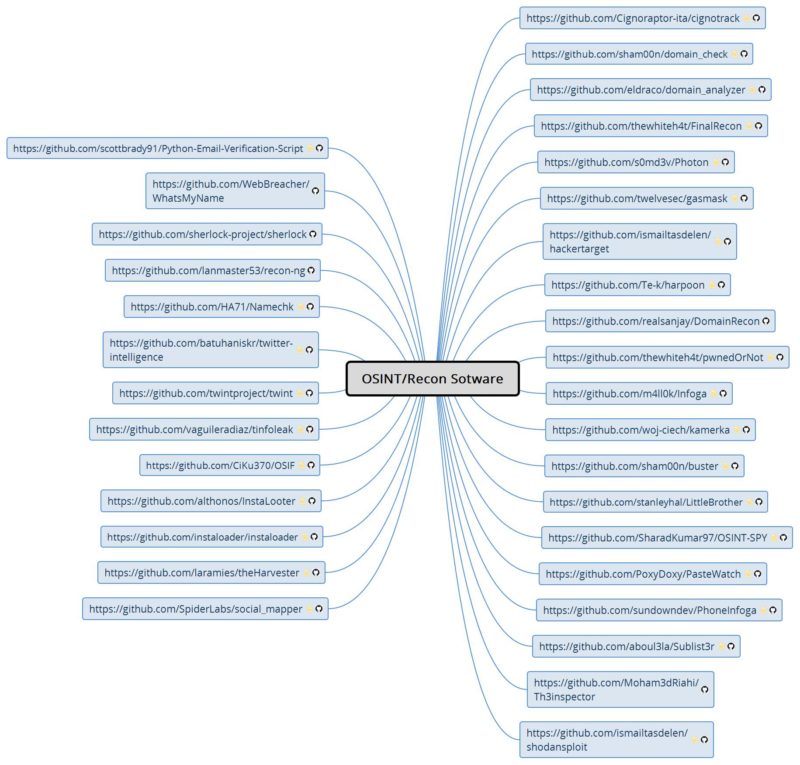
Among the scripts that I find most useful for my VM, all available on GITHUB, I want to point out:
- buster,
- cignotrak,
- domain_analyzer,
- Final Recon,
- gas mask,
- hackertarget,
- harpoon,
- Infoga,
- Instaloader,
- Little Brother,
- namechk,
- OSINT-Search,
- OSINT-SPY,
- PhoneInfoga,
- Photon,
- pwnedOrNot,
- recon-ng (recently upgraded to V5),
- Sherlock,
- shodansploit,
- skiptracer,
- SocialMapper,
- Sublist3r,
- theHarvester,
- tinfoleak,
- twint,
- Twitter Intelligence,
- WhatsMyName.
These scripts cover various areas of use: from network analysis to social networks, from user/alias/person searches to phones, from emails to much more!
Installing scripts is almost always the same and can be done directly from your Linux distro's terminal. You can choose between cloning the source code or installing it using the "“pip” (provided this is made possible by the developer of the individual script). Personally, I prefer cloning the script, so that I always have visual access to the list of installed apps.
In the following example we will install Harpoon. This program, written in Python (release 3), allows you to automate information search tasks across multiple services by accessing their exposed APIs.
INSTALLATION
The first thing to do is read the developer's instructions to install any dependencies or other options.
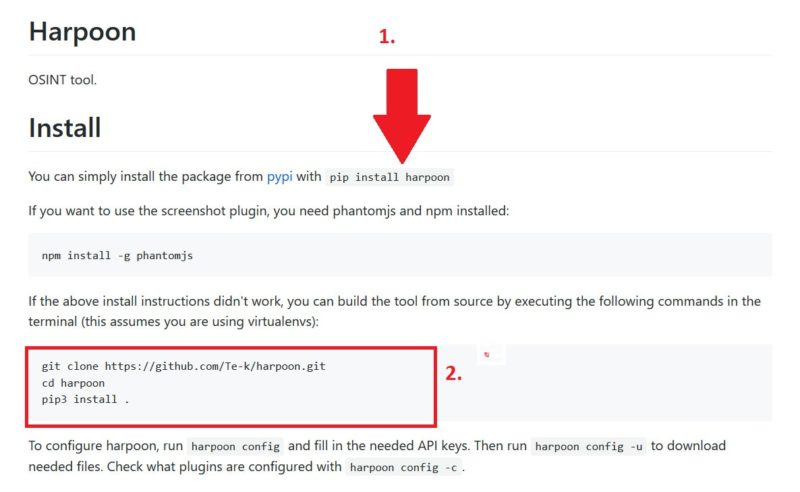
Harpoon, as already mentioned, can be installed in two different ways:
- via the command pip3 of Python.
- by cloning the source code.
First, type the following command to install the plugin for taking screenshots:
npm install -g phantomjs
Now we can move on to the 2 installation modes of our tool:
1. PIP3
in this case the command pip it's much more immediate:
pip3 install harpoon

If everything went smoothly, the tool will have been installed and we can go directly to the paragraph CONFIGURATION.
2. CLONING
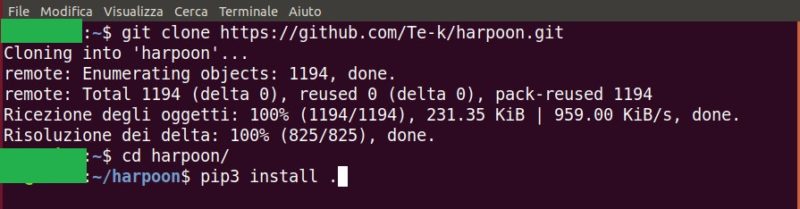
If we decide to install the app by cloning the code, we should perform three steps:
a. clone our app with the command:
git clone https://github.com/Te-k/harpoon.gitb. move into the newly created folder with the command:
cd harpoon
c. Run the program installation:
pip3 install
CONFIGURATION
To complete the installation, the developer provides the following commands:
harpoon config -u #download the necessary files for the tool
Next you need to enter the token of the APIs, for each service we intend to use in the information collection phase.
To get an idea of the large number of services that can be queried via Harpoon I suggest you take a look here.
To perform this operation you must type:
harpoon config # useful command to insert the API
This will take you to a form where you can enter the KEYS. Once you've finished entering the APIs, all you have to do is save and close the terminal.
If you want to manually insert the APIs into the configuration file or make a backup of them, you simply need to move to the folder ~/.config/harpoon and operate on the file config .

To view the list of correctly entered API Keys you can use the command:
harpoon config -c
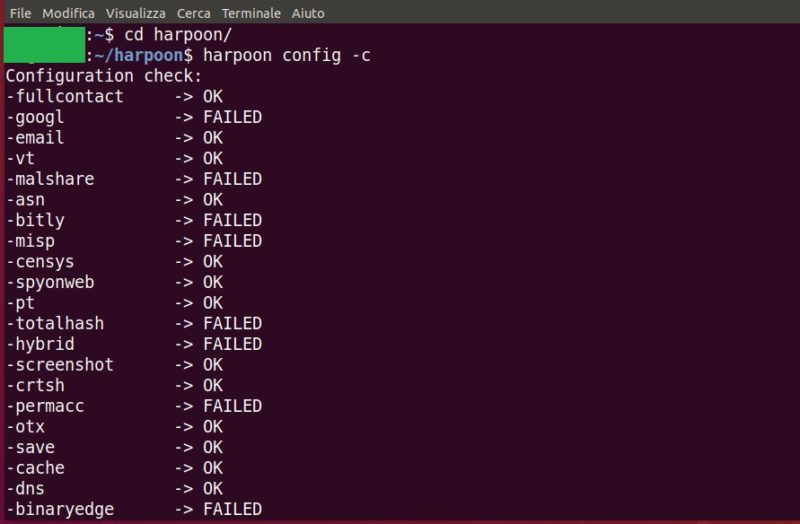
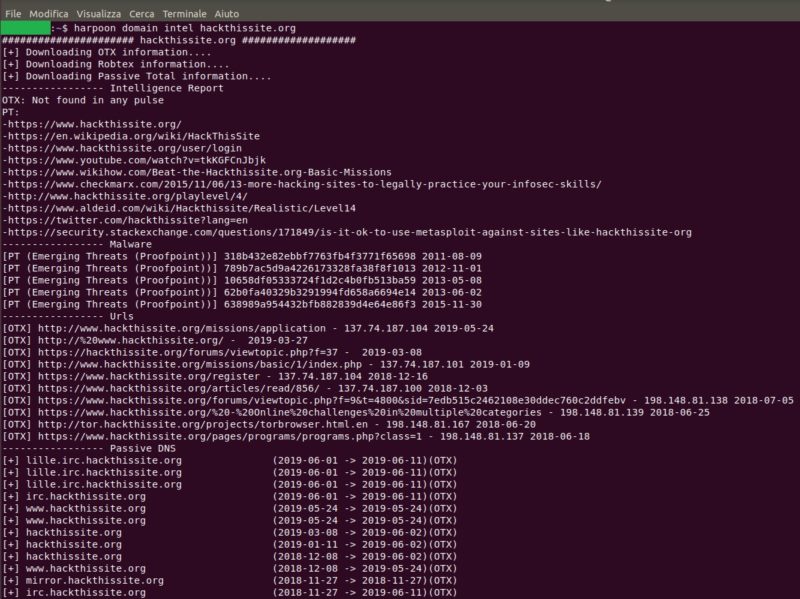
After this last step, you'll be sure Harpoon is properly configured and ready for use. If we want to test its capabilities, we can use the domain "“hackthissite.org“:
Conclusions
Remember that a similar installation procedure must be performed for each tool you consider interesting, following the instructions provided by the developer.
Once you have finished configuring all the tools, I suggest you:
- shut down the VM,
- generate a snapshot to crystallize the initial configuration and generate a clone of it, ready to use whenever you need it.
Remember to:
- frequently update the initial configuration and all installed scripts,
- always use the clone of the “mother machine” and NEVER the main machine,
- avoid “contaminating different research activities” by always using “virgin” clones and, at the end of each investigation, eliminate the machines used previously.
Maybe it's my age or simply everyday fatigue, but I always need a quick, accessible guide to my tools. That's why, in my VM, for each individual tool, I summarize the queries I use most frequently in a dedicated text file.
I also created my own mind map (which has broad horizons for improvement) to try to speed up the decision-making process on which tools to use based on the data I have and the information I need to acquire:
But this could be a preview of the next article… 😉
TRAPPER'S NOTE
This work is an excellent example of how you can start configuring a Linux machine that is functional and customized to your needs.
There are at least three aspects that need to be taken care of before your Linux machine is ready to be exposed online:
- the choice of using one or more VPNs,
- the insertion of “TOR Browser” and a browser (Firefox) customized for OSInt activities,
- the risk assessment to be incurred in the investigation you are about to carry out and the consequent securing of all the Linux VM services you will use for research activities.
Let's say we use:
- a snapshot of the machine to be deleted after each activity,
- internal firewall rules as stringent as possible,
- 0 unnecessary services/ports open;
should meet the security needs of most investigative cases.
Two last questions:
- But these tools, how much noise do they do online during a search?
- What kind of traces do they leave after their use?
Leave a Reply